
DPO Pay
DPO Pay offers in-store payment solutions for customer transactions through several physical terminals. These terminals support swiping, scanning, or tapping credit and debit cards (Visa, MasterCard, and American Express), as well as Mobile payments (Airtel Money and M-Pesa).
Important
DPO Pay payment terminals do not require an IoT system to operate.
The Odoo DPO Pay module is only available for companies operating in the African region.
A DPO merchant account is required to process transactions.
DPO Pay credentials
Create a DPO Pay account and order at least one terminal. Once ordered, the sales team contacts you for the onboarding process and then sends an email containing the following credentials:
Client ID
Client Secret
Merchant ID
Terminal ID
Chain ID
Odoo configuration
Configure the payment method
To connect the DPO Pay terminal with Odoo Point of Sale, follow these steps:
Install the PoS DPO Pay module.
-
Go to and click New.
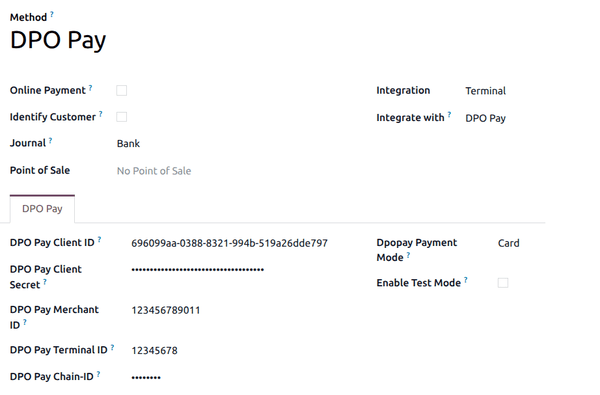
Set the Journal field to Bank.
Set the Integration field to Terminal.
Set the Integrate with field to DPO Pay.
Add the credentials to their corresponding fields.
Add the payment method to a POS
To add a payment method to your point of sale:
Go to the POS settings.
Select the POS in the Point of Sale field.
Add the payment method under the Payment Methods field in the Payment section.
Tip
Enable DPO Pay Test Mode to test transaction processes with a device.